Table of Contents
- Overview
- Initial Setup
- Control Options
- Web Interface
- Bluetooth Keyboard
- Multi-Device Directory
- Factory Reset
- Troubleshooting
Overview
Sunday HomeSpan is a smart LED controller that integrates seamlessly with Apple HomeKit. You can control your lights through:
- Apple Home app - The primary control method for most users
- Web interface - Access advanced features and settings
- Bluetooth keyboard - Quick physical controls without reaching for your phone
Initial Setup
First Time Setup
Power on the Sunday light
Choose Connection Mode:
- On your phone, join the "Sunday-Setup-XXXX" WiFi network (password: sunday123)
- A configuration page will open automatically (captive portal)
Option A: Home WiFi (Recommended)
- Tap "Scan Networks" to see available WiFi networks
- Select your home WiFi network and enter the password
- The device will restart and connect to your network
- Continue to step 3 for HomeKit setup
Option B: Standalone AP Mode
- Tap "Control Sunday through local AP mode"
- Device restarts in permanent AP mode
- Reconnect to "Sunday-Setup-XXXX" network
- Access control at
http://192.168.4.1 - Note: HomeKit not available in this mode
Add to Apple Home (WiFi mode only):
- Open the Home app on your iPhone/iPad
- Tap the + icon and select "Add Accessory"
- Scan the HomeKit code or enter manually: 466-37-726
- Name your light and assign it to a room
Control Options
Apple Home App (Primary Method)
Most users will control their Sunday lights exclusively through the Apple Home app:
- Turn on/off with a single tap
- Adjust brightness using the slider
- Change color temperature from warm to cool white
- Create automations based on time, presence, or other triggers
- Use Siri for voice control: "Hey Siri, turn on the living room light"
Web Interface (Advanced Features)
Access additional features by visiting your light's IP address in a web browser. The web interface provides:
- Direct control when HomeKit is unavailable
- System diagnostics and firmware updates
- Bluetooth keyboard pairing
- Multi-device management (if you have multiple Sunday lights)
Web Interface
Finding Your Light's IP Address
- Check your router's connected devices list
- Look for a device named "Sunday-Light-XXXX"
- Or use the mDNS address:
http://sunday.local(may not work on all networks)
Control Page
The main control interface for your light.
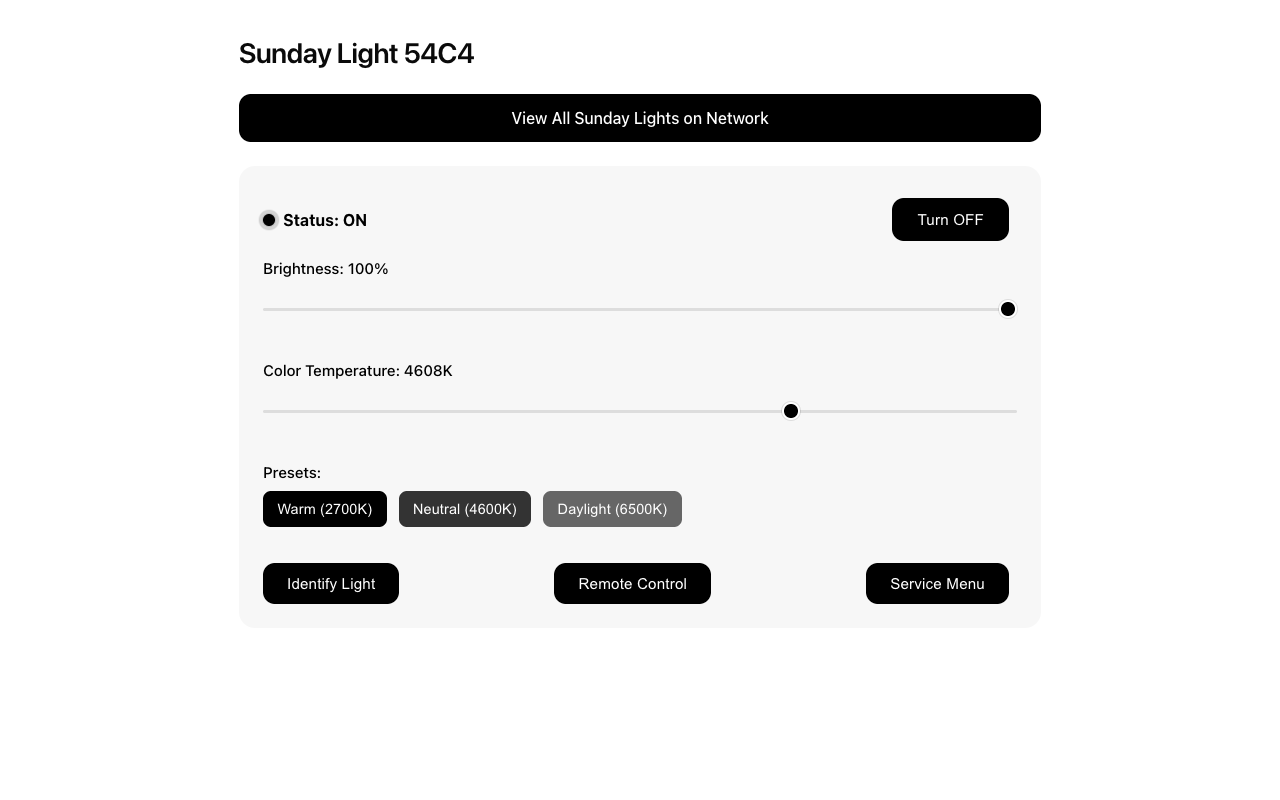
- Power Toggle - Turn the light on or off
- Brightness Slider - Adjust from 0-100%
- Color Temperature Slider - Slide between warm (2700K) and cool (6500K) white
- Preset Buttons - Quick access to Warm, Neutral, and Daylight settings
- Navigation Buttons:
- Identify Light - Makes the light flash to help identify it
- Remote Control - Access Bluetooth keyboard settings
- Service Menu - System information and updates
Service Menu
Access system information and maintenance features.
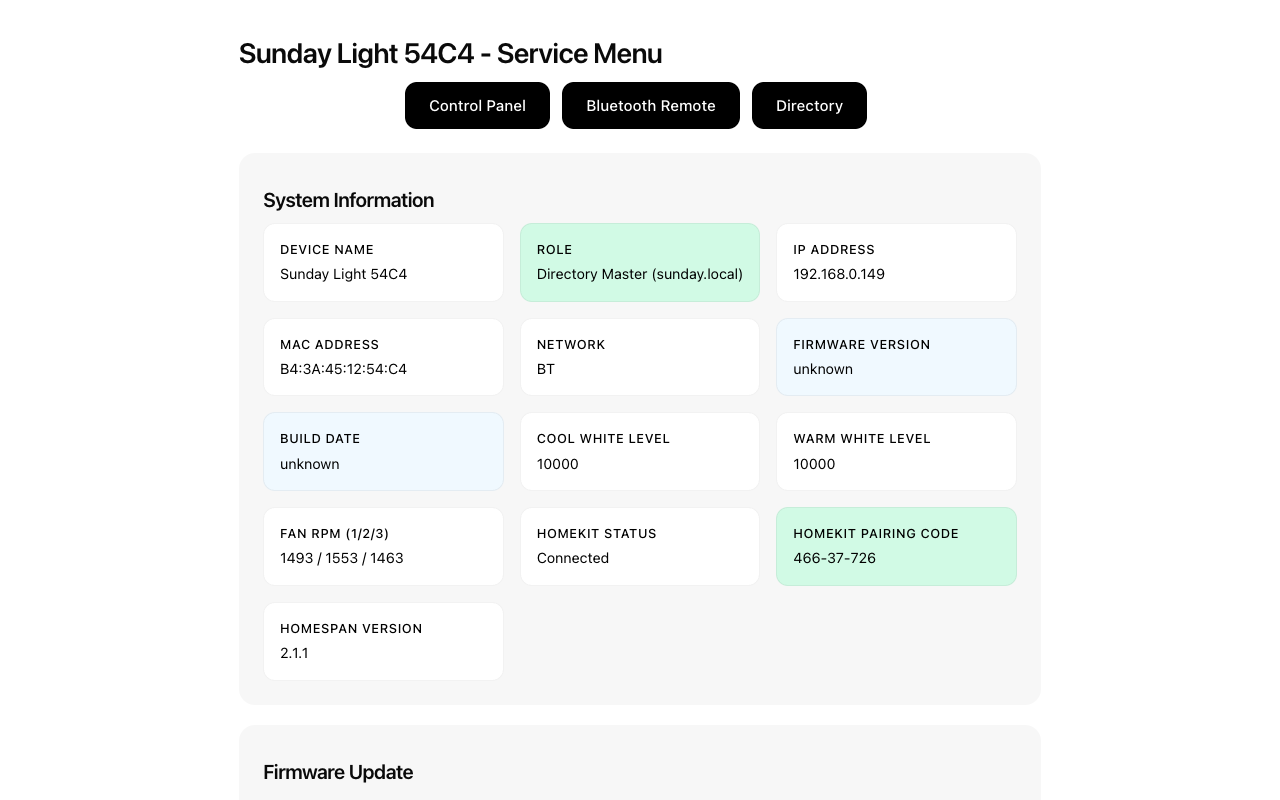
System Information displays:
- Device Name & Role - Identifies if this is the directory master
- Network Details - IP address, MAC address, WiFi network
- Fan RPM - Cooling system status (3 readings for redundancy)
- HomeKit Status - Connection state and pairing code
- Firmware Version - Current software version
WiFi Configuration:
- Shows current connection status
- In AP mode: Button to exit AP mode and configure WiFi
- In WiFi mode: Button to change WiFi network
Firmware Update section:
- Upload new firmware files when updates are available
- Only use official firmware files from the manufacturer
- The update process takes 2-3 minutes - do not power off during update
System Logs:
- View recent system events for troubleshooting
- Download logs to share with support if needed
Factory Reset:
- Removes all settings including WiFi and HomeKit pairing
- Use only when instructed by support or changing ownership
Bluetooth Keyboard
Pairing a Keyboard
Add a Bluetooth keyboard for quick physical control:
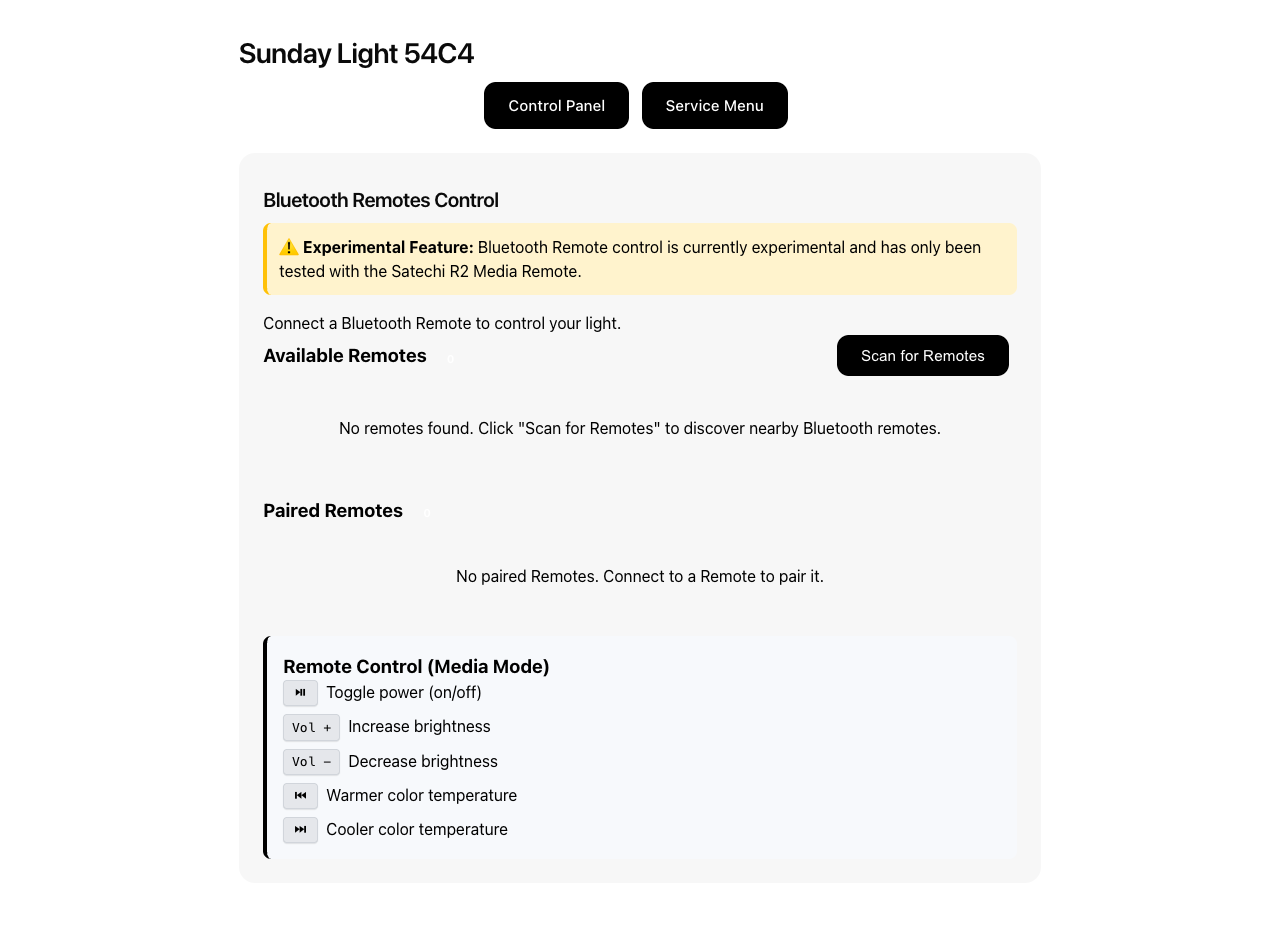
- Navigate to Remote Control from the Control page
- Click Scan for Devices
- Put your keyboard in pairing mode
- Select your keyboard from the list
- Click Connect
Keyboard Controls
Once paired, use these keys to control your light:
| Key | Function | Details |
|---|---|---|
| Space | Toggle on/off | Quick press to switch |
| ↑/↓ | Brightness | Adjusts in 5% increments |
| ←/→ | Color temperature | Warmer/cooler in small steps |
| 1 | Warm preset | 2700K warm white |
| 2 | Neutral preset | 4000K neutral white |
| 3 | Daylight preset | 6500K cool white |
Multi-Device Directory
If you have multiple Sunday lights, one device automatically becomes the "Directory Master" and provides a centralized view of all lights on your network.
Accessing the Directory
- The directory is only available on the master device
- From any Sunday light's web interface, click View All Sunday Lights on Network
- Or navigate directly to the master's IP address
Directory Features
- Live Status - See which lights are on/off
- Quick Controls - Turn any light on/off from one page
- Identify - Flash a specific light to locate it
- Auto-refresh - Updates every 30 seconds
The directory master is typically the first Sunday light added to your network. If the master goes offline, another device will automatically take over this role.
Factory Reset
The Sunday light is sealed and does not have an accessible reset button. To factory reset:
Method 1: Power Cycle Reset
- Turn the light switch OFF
- Turn it ON, wait 1-2 seconds, then OFF again
- Repeat this ON-OFF cycle 5 times within 5 seconds
- On the final ON, the light will flash to confirm reset
- The device will restart in setup mode
Method 2: Web Interface Reset
- Access the Service Menu
- Scroll to the bottom
- Click Factory Reset
- Confirm when prompted
Note: Factory reset will:
- Remove the device from HomeKit
- Clear WiFi settings
- Reset all preferences
- Return to initial setup mode with WiFi access point "Sunday-Setup-XXXX"
Troubleshooting
Light Not Responding in Home App
- Check power - Ensure the light switch is ON
- Check WiFi - Verify your phone is on the same network
- Restart Home Hub - Restart your Apple TV, HomePod, or iPad
- Re-add to HomeKit - Remove and re-add the accessory
Cannot Access Web Interface
- Verify connection - Ensure you're on the same WiFi network
- Find correct IP - Check router for "Sunday-Light-XXXX"
- Try mDNS - Use
http://sunday.local - Disable VPN - VPNs may block local network access
Bluetooth Keyboard Not Working
- Check pairing - Verify keyboard shows as connected
- Re-pair device - Disconnect and pair again
- Replace batteries - Low battery can cause connection issues
- Move closer - Bluetooth range is typically 30 feet
Light Flashing or Dimming
- Cooling system - Ensure adequate ventilation around the fixture
- Power supply - Verify proper voltage (dimmer switches not supported)
- Safety cutoff - Light reduces brightness if overheating detected
WiFi Connection Issues
- 2.4GHz only - Sunday lights do not support 5GHz networks
- Special characters - Avoid &, <, >, " in WiFi passwords
- Hidden networks - Not supported, SSID must be broadcast
Need More Help?
- Check the online documentation
- Contact support with your device's MAC address and system logs